
SFMB - Stage World
How to find, inspect, and play community stages through Stage World.
- About Stage World
- Finding Stages
- Stage Details
- Downloading and Playing
- Likes, Comments, and Ratings
- Contest Stages
- For Stage Creators
- Related Guides
About Stage World
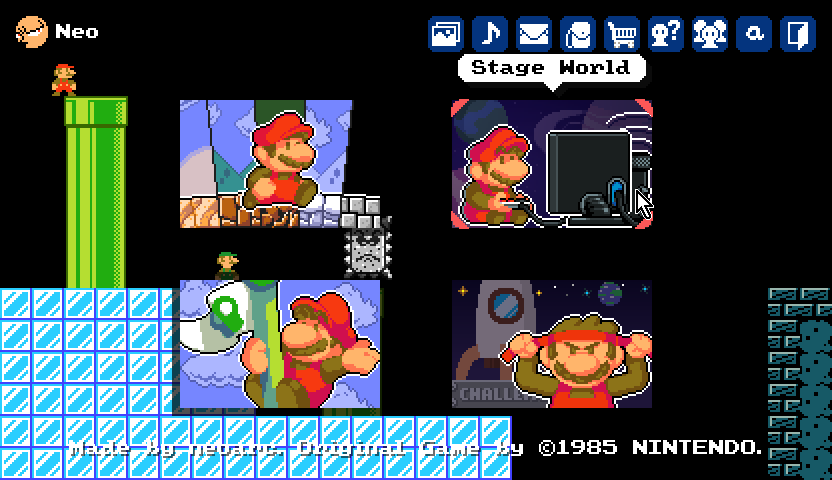
Stage World is SFMB's online stage-sharing area. It is used to find and play stages uploaded by other beta testers, revisit your own uploads, and browse stages marked as contest entries.
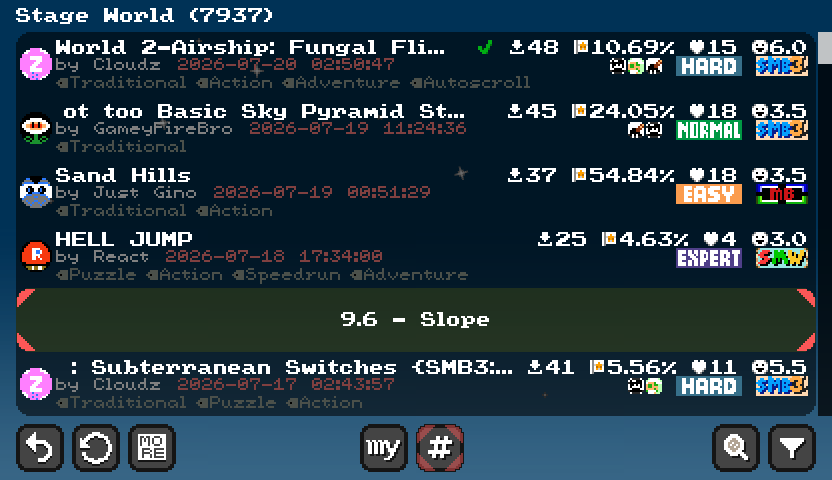
The first screen is a stage list. Selecting an entry opens its details before the stage is downloaded or played.
TODO
Finding Stages
Each entry in the stage list shows its title, creator, upload date, tags, download count, clear rate, likes, Moderator rating, difficulty, Game Theme, and playable characters. A check mark identifies a stage with a clear record on the current local profile.
The controls at the bottom of the list provide quick access to:
- Reloading the stage list
- Showing your own uploaded stages
- Showing contest stages
- Opening the announcement for an ongoing contest, when one is active
- Searching and configuring filters
- Resetting the current search options
Search
Stages can be searched by stage title or creator. From a stage's detail screen, selecting the creator's name searches for more stages by that creator, while selecting a tag searches for other stages with the same tag.
Sort
The list can be sorted in either direction by:
- Upload time
- Likes
- Clear rate
- Download count
- Moderator rating
Filter
Filters can narrow the list by difficulty, Game Theme, and minimum Moderator rating. They can also hide categories such as:
- Cleared stages
- Rated or unrated stages
- Stages rated by you
- Stages tagged as broken
- Stages that require Game Themes you do not want to use
If a removed Game Theme is selected in the filter settings, stages using that theme may also be hidden. Use Reset Search Options if expected stages no longer appear.
Stage Details
The detail screen brings the information needed to decide whether to play a stage into one place:
- Stage title, creator, version, and revision
- Creator's comment and stage tags
- Game Theme, difficulty, and playable characters
- Moderator rating
- Download and like counts
- Clear rate, clear/fail counts, and average clear time
- Comments left by players
Some statistics can be selected to see the users or individual ratings included in the total. A stage update is also marked when the local copy is older than the current revision.
Downloading and Playing
The main action on the detail screen changes according to the local copy of the stage:
- Download & Play — no local copy is available.
- Update & Play — a newer revision is available.
- Play — the current revision is already available locally.
Downloading and updating are therefore handled automatically when the stage is played. A separate manual download is not required for ordinary play.
Important: Stages downloaded through Stage World do not appear in Single Stage. Return to Stage World when you want to play them again.
If required Game Themes are missing, the play button is locked and identifies the themes that must be installed.
Before a stage is played, Stage World may show one of the following warnings:
- Custom enemy — the stage uses modified enemies whose appearance or behavior may be unexpected or deliberately misleading.
- PixelArtX — the stage uses extended pixel-art objects that may be elaborate decorations or part of troll mechanics.
- Incomplete Game Theme — some enemies or items may look unusual, and parts of the game may appear to malfunction.
- Eye-straining Game Theme — the theme's visuals may cause discomfort or eye strain.
Each warning provides Play and Cancel choices and a Don't show this warning again option for that warning category.
Likes, Comments, and Ratings
Stage World displays likes and player comments on the detail screen, but they are submitted while playing the stage or after a playthrough:
- A comment can be posted from the pause menu or the stage result screen.
- A stage can be liked from the stage result screen.
Moderator ratings are separate from likes. Only users with the Stage Moderator role can assign a rating from 0 to 7. See [[sfmb_stage_rating]]{Stage Rating} for the criteria and [[sfmb_community_roles/#stage-moderator]]{Community Roles — Stage Moderator} for role eligibility.
Contest Stages
The # button filters the list to stages marked as contest entries. When a contest is in progress, a separate notification button opens its announcement, including the contest title, message, and author.
Contest rules, schedules, and results are recorded in [[sfmb_stage_contests]]{Stage Contests}.
For Stage Creators
Show Your Levels filters the list to stages uploaded by the current user. On your own stage's detail screen, creator controls may include:
- Editing its tags
- Downloading the original editable stage file
- Deleting the uploaded stage
- Moving the stage back to the top of the list by consuming an Expose Stage to Top inventory item
Stage Moderators can also edit tags when moderation is required. Uploading or updating a stage is performed through the Map Editor rather than from the Stage World list.
TODO
Related Guides
- [[sfmb_main_menus]]{Main Menus} — Overview of Stage World and the other title-screen menus.
- [[sfmb_level_difficulty]]{Level Difficulty} — How a stage's difficulty is determined.
- [[sfmb_stage_rating]]{Stage Rating} — How Stage Moderators evaluate stages.
- [[sfmb_stage_contests]]{Stage Contests} — Ongoing contests and past results.
- [[sfmb_mapeditor_guide]]{Map Editor Guide} — How to create stages.